upload/misc/worldtracker.org/How-To/For Dummies eBook Collection/Microsoft Office Word 2007 for Dummies.pdf
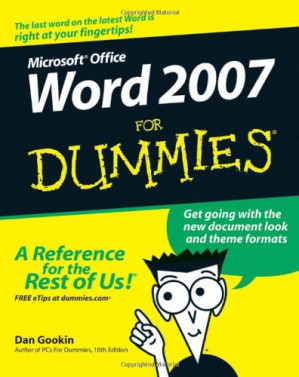
Word 2007 For Dummies (For Dummies (Computer/Tech)) 🔍
Gookin, Dan
Indianapolis, IN: Wiley Pub., Inc, -For dummies, 1, 2006
英语 [en] · PDF · 6.1MB · 2006 · 📘 非小说类图书 · 🚀/duxiu/lgli/lgrs/nexusstc/upload/zlib · Save
描述
An introduction to the latest version of Microsoft's word processing software reviews Word 2007 fundamentals while demonstrating updated features and explaining how to integrate documents with other Microsoft Office applications, customize the program, and post documents to the Web. Ch. 1. Word hokey-pokey -- Ch. 2. Making friends with the keyboard -- Ch. 3. quick guide to Word (for the impatient) -- Ch. 4. Moving around a document hither, thither, and yon -- Ch. 5. Editing text -- Ch. 6. Find and replace -- Ch. 7. Text blocks, stumbling blocks, writer's blocks -- Ch. 8. Proofing your document (spelling and grammar) -- Ch. 9. Documents and files -- Ch. 10. printer, the paper, the document maker -- Ch. 11. Formatting text -- Ch. 12. Formatting paragraphs -- Ch. 13. Setting tabs -- Ch. 14. Formatting pages -- Ch. 15. Formatting documents -- Ch. 16. styles of word -- Ch. 17. Themes and templates -- Ch. 18. Misc. formatting stuff -- Ch. 19. Borders, boxes, and background color -- Ch. 20. Turning the tables -- Ch. 21. Carousing with columns -- Ch. 22. I love lists -- Ch. 23. Going graphical -- Ch. 24. Stick this in your document -- Ch. 25. Multiple documents, multiple windows, multiple formats, multiple madness -- Ch. 26. Other ways of viewing a document -- Ch. 27. Working this out together -- Ch. 28. Merrily we mail merge -- Ch. 29. Labels of love -- Ch. 30. Customizing word -- Ch. 31. ten commandments of word -- Ch. 32. Ten cool tricks -- Ch. 33. Ten old things -- Ch. 34. Ten avuncular suggestions
备用文件名
upload/wll/ENTER/1 ebook Collections/For Dummies Collection/Microsoft Office Word 2007 for Dummies.pdf
备用文件名
nexusstc/Word 2007 for dummies (r)/9ed1d0809594ec8370dbe4e4646ce618.pdf
备用文件名
lgli/Word 2007 for Dummies.pdf
备用文件名
lgrsnf/Word 2007 for Dummies.pdf
备用文件名
zlib/Computers/Applications & Software/Dan Gookin/Word 2007 For Dummies_640474.pdf
备选标题
S.K.I.R.T.S in the Boardroom A Woman's Survival Guide to Success in Business and Life
备选标题
Microsoft Office Word 2007 for dummies
备选作者
Dan Gookin
备用出版商
Wiley & Sons, Incorporated, John
备用出版商
Wiley ; John Wiley [distributor
备用出版商
John Wiley & Sons, Incorporated
备用出版商
John Wiley & Sons, Ltd.
备用出版商
Spectrum Publications
备用出版商
Kohlhammer, W., GmbH
备用出版商
Halsted Press
备用出版商
For Dummies
备用版本
John Wiley & Sons, Inc. (trade), Hoboken, N.J., 2007
备用版本
--For dummies, Indianapolis, IN, Indiana, 2007
备用版本
United States, United States of America
备用版本
--For dummies, Indianapolis, IN, 2006
备用版本
--For dummies, Hoboken, N.J, ©2007
备用版本
--For dummies, Hoboken, NJ, c2007
备用版本
Hoboken, N.J., Chichester, 2006
备用版本
1., Auflage, New York, NY, 2007
备用版本
1., Auflage, New York, NY, 2011
备用版本
New York, New York State, 2007
备用版本
Hoboken, N.J, 2013
备用版本
December 26, 2006
备用版本
Germany, Germany
备用版本
1, 2011-02-10
备用版本
Dummies, 2011
备用版本
1, PS, 2006
元数据中的注释
lg212727
元数据中的注释
producers:
Acrobat Distiller 6.0.1 (Windows)
Acrobat Distiller 6.0.1 (Windows)
元数据中的注释
{"edition":"1","isbns":["0470036583","047012136X","1118043871","3175723993","9780470036587","9780470121368","9781118043875","9783175723998"],"last_page":431,"publisher":"Wiley Pub Inc","series":"-For dummies"}
元数据中的注释
Includes index.
元数据中的注释
topic: Microsoft Word; Word processing
元数据中的注释
Type: 英文图书
元数据中的注释
Bookmarks:
1. (p1) Introduction
1.1. (p2) What's New in Word 2007?
1.2. (p3) About This Book
1.3. (p4) How to Use This Book
1.4. (p5) Foolish Assumptions
1.5. (p6) How This Book Is Organized
1.5.1. (p7) Part I: Hello, Word!
1.5.2. (p8) Part II: Word Processing Basics
1.5.3. (p9) Part HI: Formatting
1.5.4. (p10) Part IV: Making Your Document All Fancy-Schmancy
1.5.5. (p11) Part V: What Else Is Left?
1.5.6. (p12) Part VI: The Part of Tens
1.6. (p13) What's Not Here
1.7. (p14) Icons Used in This Book
1.8. (p15) Where to Go from Here
2. (p16) Part I: Hello, Word!
2.1. (p17) Chapter 1: Word Hokey-Pokey
2.1.1. (p18) How Do I Start Word? Let Me Count the Ways
2.1.2. (p19) Behold Word!
2.1.3. (p20) Cajoling Word to Help You
2.1.4. (p21) When You're All Done
2.2. (p22) Chapter 2: Making Friends with the Keyboard
2.2.1. (p23) Behold the PC Keyboard!
2.2.2. (p24) Typing (Or, the Old Hunt-and-Peck)
2.2.3. (p25) Things to Notice Whilst You Type
2.3. (p26) Chapter 3: A Quick Guide to Word (For the Impatient)
3. (p34) Part II: Word Processing Basics
3.1. (p35) Chapter 4: Moving Around a Document Hither, Thither, and Yon
3.1.1. (p36) Scrolling a Document
3.1.2. (p37) Moving the Insertion Pointer
3.1.3. (p38) Using Browse Buttons to Navigate
3.1.4. (p39) Getting Lost and Going Back
3.1.5. (p40) Go to Wherever with the Go To Command
3.2. (p41) Chapter 5: Editing Text
3.2.1. (p42) Deleting Stuff
3.2.2. (p43) Splitting and Joining
3.2.3. (p44) Mistakes? Mistakes? Undo Them with Haste
3.3. (p45) Chapter 6: Find and Replace
3.3.1. (p46) Text Happily Found
3.3.2. (p47) Replacing What's Been Found
3.4. (p48) Chapter 7: Text Blocks, Stumbling Blocks, Writer's Blocks
3.4.1. (p49) What Is a Block of Text?
3.4.2. (p50) Marking a Chunk of Text As a Block
3.4.3. (p51) Deselecting a Block
3.4.4. (p52) You've Marked the Block-Now What?
3.4.5. (p53) The Miracle of Collect-and-Paste
3.5. (p54) Chapter 8: Proofing Your Document (Spelling and Grammar)
3.5.1. (p55) Hun Dewing Yore Mist Aches
3.5.2. (p56) Check Your Spelling
3.5.3. (p57) Instant Text-Fixin' with AutoCorrect
3.5.4. (p58) Grammar Be Good
3.5.5. (p59) Proofing Your Entire Document at Once
3.5.6. (p60) Customizing Proofing Options
3.5.7. (p61) Improving Your Word Power
3.5.8. (p62) Making Every Word Count
3.6. (p63) Chapter 9: Documents and Files
3.6.1. (p64) All About Files
3.6.2. (p65) Making a New Document
3.6.3. (p66) Saving a Document
3.6.4. (p67) Opening a Document
3.7. (p68) Chapter 10: The Printer, the Paper, the Document Maker
4. (p75) Part III: Formatting
4.1. (p76) Chapter 11: Formatting Text
4.1.1. (p77) How to Format Text
4.1.2. (p78) Basic Text Formatting
4.1.3. (p79) Text Transcending Teeny to Titanic
4.1.4. (p80) More Colorful Text Makes Not for More Colorful Writing
4.1.5. (p81) Undoing All This Text-Formatting Nonsense
4.1.6. (p82) Fun and Formatting in the Font Dialog Box
4.1.7. (p83) Changing the CASE of Text
4.2. (p84) Chapter 12: Formatting Paragraphs
4.2.1. (p85) How to Format a Paragraph
4.2.2. (p86) Where the Paragraph Formatting Commands Lurk
4.2.3. (p87) Paragraph Justification and Alignment
4.2.4. (p88) Making Room Before, After, or Inside Your Paragraphs
4.2.5. (p89) Paragraph Indentation
4.2.6. (p90) Who Died and Made This Thing Ruler?
4.3. (p91) Chapter 13: Setting Tabs
4.3.1. (p92) The Story of Tab
4.3.2. (p93) The Tab Stops Here
4.3.3. (p94) The Standard Left Tab Stop
4.3.4. (p95) The Center Tab Stop
4.3.5. (p96) The Right Tab Stop
4.3.6. (p97) The Decimal Tab
4.3.7. (p98) The Bar Tab
4.3.8. (p99) The Tabs Dialog Box
4.3.9. (p100) Unsetting a Tab Stop
4.4. (p101) Chapter 14: Formatting Pages
4.4.1. (p102) Describe That Sheeto' Paper
4.4.2. (p103) Page Numbering
4.4.3. (p104) New Pages from Nowhere
4.4.4. (p105) Page Froufrou
4.5. (p106) Chapter 15: Formatting Documents
4.5.1. (p107) The Oft Misunderstood Yet Useful Concept of Sections
4.5.2. (p108) Adding a Cover Page (Sneaky and Quick)
4.5.3. (p109) Hats and Shoes for Your Pages (Headers and Footers)
4.6. (p110) Chapter 16: The Styles of Word
4.6.1. (p111) The Big Style Overview
4.6.2. (p112) Effortless Formatting Fun with Quick Styles
4.6.3. (p113) Do-It-Yourself Styles
4.6.4. (p114) Managing All Your Various Styles
4.7. (p115) Chapter 17: Themes and Templates
4.7.1. (p116) Formatting Fast and Fancy with a Theme
4.7.2. (p117) Whipping Out Similar Documents Based on a Template
4.8. (p118) Chapter 18: Misc. Formatting Stuff
5. (p123) Part IV: Making Your Document All Fancy-Schmancy
5.1. (p124) Chapter 19: Borders, Boxes, and Background Color
5.1.1. (p125) This Border Situation
5.1.2. (p126) Lines and Boxes Around Your Text
5.1.3. (p127) Background Colors
5.2. (p128) Chapter 20: Turning the Tables
5.2.1. (p129) Furnish Forth the Tables
5.2.2. (p130) It's Your Turn to Set the Table
5.2.3. (p131) Table Craftsmanship
5.3. (p132) Chapter 21: Carousing with Columns
5.3.1. (p133) All About Columns
5.3.2. (p134) Here Come the Columns!
5.3.3. (p135) The End of the Column
5.4. (p136) Chapter 22: I Love Lists
5.4.1. (p137) Basic Bullets and Numbers
5.4.2. (p138) Lists of Things in Your Document
5.4.3. (p139) Footnotes and Endnotes
5.5. (p140) Chapter 23: Going Graphical
5.5.1. (p141) Here Come the Graphics!
5.5.2. (p142) Images and Text Can Mix
5.5.3. (p143) Image Editing
5.6. (p144) Chapter 24: Stick This in Your Document
6. (p149) Part V: What Else Is Left?
6.1. (p150) Chapter 25: Multiple Documents, Multiple Windows, Multiple Formats, Multiple Madness
6.1.1. (p151) Multiple Document Mania
6.1.2. (p152) Working with Non-Word Document Formats
6.2. (p153) Chapter 26: Other Ways of Viewing a Document
6.2.1. (p154) Organize Your Thoughts
6.2.2. (p155) Sit Back and Read
6.3. (p156) Chapter 27: Working This Out Together
6.3.1. (p157) Here Are My Thoughts
6.3.2. (p158) Whip Out the Yellow Highlighter
6.3.3. (p159) Look What They've Done to My Text, Ma
6.4. (p160) Chapter 28: Merrily We Mail Merge
6.4.1. (p161) All About Mail Merge
6.4.2. (p162) Mail Merge Ho!
6.5. (p163) Chapter 29: Labels of Love
6.5.1. (p164) The Label Thing
6.5.2. (p165) Here's a Sheet of Identical Labels
6.5.3. (p166) Print That Address List
6.5.4. (p167) A Label Trick with Graphics
6.6. (p168) Chapter 30: Customizing Word
7. (p172) Part VI: The Part of Tens
7.1. (p173) Chapter 31: The Ten Commandments of Word
7.1.1. (p174) Thou Shalt Remember to Save Thy Work
7.1.2. (p175) Thou Shalt Not Use More Than One Space
7.1.3. (p176) Thou Shalt Not Press Enter at the End of Each Line
7.1.4. (p177) Thou Shalt Not Neglect Thy Keyboard
7.1.5. (p178) Thou Shalt Not Manually Number Thy Pages
7.1.6. (p179) Thou Shalt Not Use the Enter Key to Start a New Page
7.1.7. (p180) Thou Shalt Not Click OK Too Quickly
7.1.8. (p181) Thou Shalt Not Forget Thy Undo Command
7.1.9. (p182) Honor Thy Printer
7.1.10. (p183) Thou Shalt Have Multiple Document Windows Before Thee
7.2. (p184) Chapter 32: Ten Cool Tricks
7.2.1. (p185) Automatic Save with AutoRecover
7.2.2. (p186) Keyboard Power!
7.2.3. (p187) Build Your Own Fractions
7.2.4. (p188) Electronic Bookmarks
7.2.5. (p189) Document Inspection
7.2.6. (p190) The Drop Cap
7.2.7. (p191) The Document Map
7.2.8. (p192) Add an Envelope to Your letter
7.2.9. (p193) Sort Your Text
7.2.10. (p194) Text That Doesn't Print
7.3. (p195) Chapter 33: Ten Odd Things
7.3.1. (p196) Equations
7.3.2. (p197) Math
7.3.3. (p198) Document Defense Options
7.3.4. (p199) Hyphenation
7.3.5. (p200) Document Properties
7.3.6. (p201) The Developer Tab
7.3.7. (p202) Cross-References
7.3.8. (p203) Smart Tags
7.3.9. (p204) Click-and-Type
7.3.10. (p205) Word and the Internet
7.4. (p206) Chapter 34: Ten Avuncular Suggestions
8. (p217) Index
1. (p1) Introduction
1.1. (p2) What's New in Word 2007?
1.2. (p3) About This Book
1.3. (p4) How to Use This Book
1.4. (p5) Foolish Assumptions
1.5. (p6) How This Book Is Organized
1.5.1. (p7) Part I: Hello, Word!
1.5.2. (p8) Part II: Word Processing Basics
1.5.3. (p9) Part HI: Formatting
1.5.4. (p10) Part IV: Making Your Document All Fancy-Schmancy
1.5.5. (p11) Part V: What Else Is Left?
1.5.6. (p12) Part VI: The Part of Tens
1.6. (p13) What's Not Here
1.7. (p14) Icons Used in This Book
1.8. (p15) Where to Go from Here
2. (p16) Part I: Hello, Word!
2.1. (p17) Chapter 1: Word Hokey-Pokey
2.1.1. (p18) How Do I Start Word? Let Me Count the Ways
2.1.2. (p19) Behold Word!
2.1.3. (p20) Cajoling Word to Help You
2.1.4. (p21) When You're All Done
2.2. (p22) Chapter 2: Making Friends with the Keyboard
2.2.1. (p23) Behold the PC Keyboard!
2.2.2. (p24) Typing (Or, the Old Hunt-and-Peck)
2.2.3. (p25) Things to Notice Whilst You Type
2.3. (p26) Chapter 3: A Quick Guide to Word (For the Impatient)
3. (p34) Part II: Word Processing Basics
3.1. (p35) Chapter 4: Moving Around a Document Hither, Thither, and Yon
3.1.1. (p36) Scrolling a Document
3.1.2. (p37) Moving the Insertion Pointer
3.1.3. (p38) Using Browse Buttons to Navigate
3.1.4. (p39) Getting Lost and Going Back
3.1.5. (p40) Go to Wherever with the Go To Command
3.2. (p41) Chapter 5: Editing Text
3.2.1. (p42) Deleting Stuff
3.2.2. (p43) Splitting and Joining
3.2.3. (p44) Mistakes? Mistakes? Undo Them with Haste
3.3. (p45) Chapter 6: Find and Replace
3.3.1. (p46) Text Happily Found
3.3.2. (p47) Replacing What's Been Found
3.4. (p48) Chapter 7: Text Blocks, Stumbling Blocks, Writer's Blocks
3.4.1. (p49) What Is a Block of Text?
3.4.2. (p50) Marking a Chunk of Text As a Block
3.4.3. (p51) Deselecting a Block
3.4.4. (p52) You've Marked the Block-Now What?
3.4.5. (p53) The Miracle of Collect-and-Paste
3.5. (p54) Chapter 8: Proofing Your Document (Spelling and Grammar)
3.5.1. (p55) Hun Dewing Yore Mist Aches
3.5.2. (p56) Check Your Spelling
3.5.3. (p57) Instant Text-Fixin' with AutoCorrect
3.5.4. (p58) Grammar Be Good
3.5.5. (p59) Proofing Your Entire Document at Once
3.5.6. (p60) Customizing Proofing Options
3.5.7. (p61) Improving Your Word Power
3.5.8. (p62) Making Every Word Count
3.6. (p63) Chapter 9: Documents and Files
3.6.1. (p64) All About Files
3.6.2. (p65) Making a New Document
3.6.3. (p66) Saving a Document
3.6.4. (p67) Opening a Document
3.7. (p68) Chapter 10: The Printer, the Paper, the Document Maker
4. (p75) Part III: Formatting
4.1. (p76) Chapter 11: Formatting Text
4.1.1. (p77) How to Format Text
4.1.2. (p78) Basic Text Formatting
4.1.3. (p79) Text Transcending Teeny to Titanic
4.1.4. (p80) More Colorful Text Makes Not for More Colorful Writing
4.1.5. (p81) Undoing All This Text-Formatting Nonsense
4.1.6. (p82) Fun and Formatting in the Font Dialog Box
4.1.7. (p83) Changing the CASE of Text
4.2. (p84) Chapter 12: Formatting Paragraphs
4.2.1. (p85) How to Format a Paragraph
4.2.2. (p86) Where the Paragraph Formatting Commands Lurk
4.2.3. (p87) Paragraph Justification and Alignment
4.2.4. (p88) Making Room Before, After, or Inside Your Paragraphs
4.2.5. (p89) Paragraph Indentation
4.2.6. (p90) Who Died and Made This Thing Ruler?
4.3. (p91) Chapter 13: Setting Tabs
4.3.1. (p92) The Story of Tab
4.3.2. (p93) The Tab Stops Here
4.3.3. (p94) The Standard Left Tab Stop
4.3.4. (p95) The Center Tab Stop
4.3.5. (p96) The Right Tab Stop
4.3.6. (p97) The Decimal Tab
4.3.7. (p98) The Bar Tab
4.3.8. (p99) The Tabs Dialog Box
4.3.9. (p100) Unsetting a Tab Stop
4.4. (p101) Chapter 14: Formatting Pages
4.4.1. (p102) Describe That Sheeto' Paper
4.4.2. (p103) Page Numbering
4.4.3. (p104) New Pages from Nowhere
4.4.4. (p105) Page Froufrou
4.5. (p106) Chapter 15: Formatting Documents
4.5.1. (p107) The Oft Misunderstood Yet Useful Concept of Sections
4.5.2. (p108) Adding a Cover Page (Sneaky and Quick)
4.5.3. (p109) Hats and Shoes for Your Pages (Headers and Footers)
4.6. (p110) Chapter 16: The Styles of Word
4.6.1. (p111) The Big Style Overview
4.6.2. (p112) Effortless Formatting Fun with Quick Styles
4.6.3. (p113) Do-It-Yourself Styles
4.6.4. (p114) Managing All Your Various Styles
4.7. (p115) Chapter 17: Themes and Templates
4.7.1. (p116) Formatting Fast and Fancy with a Theme
4.7.2. (p117) Whipping Out Similar Documents Based on a Template
4.8. (p118) Chapter 18: Misc. Formatting Stuff
5. (p123) Part IV: Making Your Document All Fancy-Schmancy
5.1. (p124) Chapter 19: Borders, Boxes, and Background Color
5.1.1. (p125) This Border Situation
5.1.2. (p126) Lines and Boxes Around Your Text
5.1.3. (p127) Background Colors
5.2. (p128) Chapter 20: Turning the Tables
5.2.1. (p129) Furnish Forth the Tables
5.2.2. (p130) It's Your Turn to Set the Table
5.2.3. (p131) Table Craftsmanship
5.3. (p132) Chapter 21: Carousing with Columns
5.3.1. (p133) All About Columns
5.3.2. (p134) Here Come the Columns!
5.3.3. (p135) The End of the Column
5.4. (p136) Chapter 22: I Love Lists
5.4.1. (p137) Basic Bullets and Numbers
5.4.2. (p138) Lists of Things in Your Document
5.4.3. (p139) Footnotes and Endnotes
5.5. (p140) Chapter 23: Going Graphical
5.5.1. (p141) Here Come the Graphics!
5.5.2. (p142) Images and Text Can Mix
5.5.3. (p143) Image Editing
5.6. (p144) Chapter 24: Stick This in Your Document
6. (p149) Part V: What Else Is Left?
6.1. (p150) Chapter 25: Multiple Documents, Multiple Windows, Multiple Formats, Multiple Madness
6.1.1. (p151) Multiple Document Mania
6.1.2. (p152) Working with Non-Word Document Formats
6.2. (p153) Chapter 26: Other Ways of Viewing a Document
6.2.1. (p154) Organize Your Thoughts
6.2.2. (p155) Sit Back and Read
6.3. (p156) Chapter 27: Working This Out Together
6.3.1. (p157) Here Are My Thoughts
6.3.2. (p158) Whip Out the Yellow Highlighter
6.3.3. (p159) Look What They've Done to My Text, Ma
6.4. (p160) Chapter 28: Merrily We Mail Merge
6.4.1. (p161) All About Mail Merge
6.4.2. (p162) Mail Merge Ho!
6.5. (p163) Chapter 29: Labels of Love
6.5.1. (p164) The Label Thing
6.5.2. (p165) Here's a Sheet of Identical Labels
6.5.3. (p166) Print That Address List
6.5.4. (p167) A Label Trick with Graphics
6.6. (p168) Chapter 30: Customizing Word
7. (p172) Part VI: The Part of Tens
7.1. (p173) Chapter 31: The Ten Commandments of Word
7.1.1. (p174) Thou Shalt Remember to Save Thy Work
7.1.2. (p175) Thou Shalt Not Use More Than One Space
7.1.3. (p176) Thou Shalt Not Press Enter at the End of Each Line
7.1.4. (p177) Thou Shalt Not Neglect Thy Keyboard
7.1.5. (p178) Thou Shalt Not Manually Number Thy Pages
7.1.6. (p179) Thou Shalt Not Use the Enter Key to Start a New Page
7.1.7. (p180) Thou Shalt Not Click OK Too Quickly
7.1.8. (p181) Thou Shalt Not Forget Thy Undo Command
7.1.9. (p182) Honor Thy Printer
7.1.10. (p183) Thou Shalt Have Multiple Document Windows Before Thee
7.2. (p184) Chapter 32: Ten Cool Tricks
7.2.1. (p185) Automatic Save with AutoRecover
7.2.2. (p186) Keyboard Power!
7.2.3. (p187) Build Your Own Fractions
7.2.4. (p188) Electronic Bookmarks
7.2.5. (p189) Document Inspection
7.2.6. (p190) The Drop Cap
7.2.7. (p191) The Document Map
7.2.8. (p192) Add an Envelope to Your letter
7.2.9. (p193) Sort Your Text
7.2.10. (p194) Text That Doesn't Print
7.3. (p195) Chapter 33: Ten Odd Things
7.3.1. (p196) Equations
7.3.2. (p197) Math
7.3.3. (p198) Document Defense Options
7.3.4. (p199) Hyphenation
7.3.5. (p200) Document Properties
7.3.6. (p201) The Developer Tab
7.3.7. (p202) Cross-References
7.3.8. (p203) Smart Tags
7.3.9. (p204) Click-and-Type
7.3.10. (p205) Word and the Internet
7.4. (p206) Chapter 34: Ten Avuncular Suggestions
8. (p217) Index
元数据中的注释
theme: Microsoft Word; Word processing
备用描述
Table of Contents 7
Part I: Hello, Word! 27
Making Friends with the Keyboard 43
Behold the PC Keyboard! 43
Typing (Or, the Old Hunt-and-Peck) 45
Follow the blinking cursor 46
When to press that Enter key 46
When to whack the spacebar 47
Backing-up and erasing keys 48
Mind your 1’s and 0’s and L’s and O’s 48
Things to Notice Whilst You Type 49
The left end of the status bar 49
Life between pages 50
Spots and clutter in your text 51
Strange underlines and colored text 51
Word can type that for you 52
Word Hokey-Pokey 29
How Do I Start Word? Let Me Count the Ways. . . . 29
The good, yet unimaginative, way to start Word 30
The better and best ways to start Word 31
Starting Word by opening a document 33
Behold Word! 34
Maximize Word’s window size 34
Look! Up on the screen! 36
The blank place where you write 37
The mouse pointer in Word 38
Cajoling Word to Help You 39
When You’re All Done 40
Quitting Word 40
How to quit what you’re doing without quitting Word 41
Putting Word away for a spell 42
A Quick Guide to Word (For the Impatient) 53
The Overview 54
Typing the Text 56
Formatting a Document 56
Save Your Stuff! 57
Finishing a Document 59
Proofing your work 60
Previewing a document 60
Printing a document 60
Wrapping Things Up 62
Part II: Word Processing Basics 63
Moving Around a Document Hither, Thither, and Yon 65
Scrolling a Document 65
The vertical scroll bar 65
One paragraph on the horizontal scroll bar 67
Mouse scrolling tricks 67
Moving the Insertion Pointer 68
Commanding the insertion pointer with the mouse 68
Moving in small increments (basic arrow keys) 68
Moving from beginning to end 69
The peculiar cases of PgUp and PgDn 69
Using Browse Buttons to Navigate 70
Getting Lost and Going Back 71
Go to Wherever with the Go To Command 71
Editing Text 73
Deleting Stuff 73
The delete keys: Backspace and Delete 74
Deleting single characters 74
Deleting a word 75
Deleting more than a word 75
Splitting and Joining 77
Making two paragraphs from one 77
Making one paragraph from two 78
Splitting lines with a soft return 78
Mistakes? Mistakes? Undo Them with Haste 78
Now mark me, how I will undo myself 79
Redo, the Undo-Undo command 79
Redo, the Repeat Typing command 80
Find and Replace 83
Text Happily Found 83
O villainous text tidbit! Seek it out! 84
The Super Find command 85
Finding stuff you can’t type in 88
Finding formatting 90
Replacing What’s Been Found 92
The miracle of the Replace All button 94
Finding and replacing formatting 94
Text Blocks, Stumbling Blocks, Writer’s Blocks 97
What Is a Block of Text? 98
Marking a Chunk of Text As a Block 99
Using the keyboard to select text 99
Marking a block with the mouse 100
Using the F8 key to mark a block 102
Blocking the whole dang-doodle document 103
Deselecting a Block 104
You’ve Marked the Block — Now What? 104
Copying a block 105
Moving a block 106
Options for pasting text 106
Special pasting 107
Copying or moving a block with the mouse 108
Copying and moving with the F2 key 109
The Miracle of Collect-and-Paste 109
Looking at the Clipboard 109
Pasting from the Clipboard task pane 110
Cleansing the Clipboard task pane 111
Proofing Your Document (Spelling and Grammar) 113
Hun Dewing Yore Mist Aches 114
Check Your Spelling 114
The red zigzag of shame 114
What to do when the spell checker stupidly assumes that a word is misspelled but in fact it isn’t 116
Undoing an Ignore All command 117
Un-adding words to the dictionary 118
Instant Text-Fixin’ with AutoCorrect 119
AutoCorrect in action 119
Do your own AutoCorrect entries 120
Undoing an AutoCorrect correction 121
Grammar Be Good 122
Proofing Your Entire Document at Once 122
Customizing Proofing Options 124
Improving Your Word Power 124
A thesaurus is not a colossal prehistoric beast 125
The Research task pane 126
Making Every Word Count 127
Documents and Files 129
All About Files 129
Making a New Document 130
Quick! A blank sheet of paper! 131
Using a template 132
Saving a Document 133
Saving a new document to disk the first time 133
Problems with saving a document to disk 135
Saving or updating a document 136
Saving when you’re done 137
Not saving a document 138
Opening a Document 138
Using the traditional Open command 138
A handy way to open a recent file 140
Opening one document inside another 140
The Printer, the Paper, the Document Maker 143
Preparing the Printer 143
Preview Before You Print 144
Printing a Whole Document 146
Printing backward 148
Printing a document quickly 149
Choosing another printer 149
Printing Part of a Document 150
Printing a specific page 150
Printing a range of pages 151
Printing a block 152
Printing More than One Copy of Something 152
Canceling a Print Job (Omigosh!) 153
Part III: Formatting 155
Formatting Text 157
How to Format Text 157
Basic Text Formatting 158
Changing the font 159
Character formats (bold, italic, and so on) 160
Text Transcending Teeny to Titanic 162
Setting the text size 163
Nudging text size 163
More Colorful Text Makes Not for More Colorful Writing 164
Undoing All This Text-Formatting Nonsense 165
Fun and Formatting in the Font Dialog Box 166
Formatting Paragraphs 171
How to Format a Paragraph 171
Where the Paragraph Formatting Commands Lurk 173
Paragraph Justification and Alignment 174
Line up on the left! 175
Everyone center! 175
Line up on the right! 175
Full justification! (Full justification — aye, sir!) 176
Making Room Before, After, or Inside Your Paragraphs 176
Traditional line spacing 176
More line spacing options 177
That space between paragraphs 178
Paragraph Indentation 179
Indenting the first line of a paragraph 179
Making a hanging indent 180
Indenting a whole paragraph 181
Setting the paragraph margins 181
Who Died and Made This Thing Ruler? 182
Setting Tabs 185
The Story of Tab 185
The Tab Stops Here 186
The Standard Left Tab Stop 188
The tabbed list 188
The tab-tab-paragraph thing 190
The Center Tab Stop 191
The Right Tab Stop 192
Right stop, left stop list 193
Tab, right stop list 194
The Decimal Tab 195
The Bar Tab 196
The Tabs Dialog Box 196
Setting a tab in the Tabs dialog box 197
Setting leader tabs 198
Default tab stops 199
Unsetting a Tab Stop 200
Formatting Pages 201
Describe That Sheet o’ Paper 201
A page is a sheet of paper about “this” big 202
Page orientation (landscape or portrait) 203
Marginal information 204
Behold the Page Setup dialog box 205
Page Numbering 207
Where to stick the page number? 208
Starting off with a different page number 209
Numbering with Roman numerals 210
Removing page numbers 210
New Pages from Nowhere 210
Starting afresh on a new, blank page 210
Inserting a whole, blank page 211
Page Froufrou 212
Color your page 212
The distinguished watermark 213
Formatting Documents 215
The Oft Misunderstood Yet Useful Concept of Sections 215
Understanding sections 216
Creating a section 217
Using a section 218
Deleting a section break 219
Adding a Cover Page (Sneaky and Quick) 219
Hats and Shoes for Your Pages (Headers and Footers) 220
Adding a header 221
Editing a header 222
Making odd and even headers 224
Headers and document sections 225
Removing a header 227
The Styles of Word 229
The Big Style Overview 229
Types of styles 230
Styles quick and custom 231
Using a style 231
Effortless Formatting Fun with Quick Styles 232
Applying a Quick Style to your text 232
Employing the Styles task pane 234
The Styles task pane lite 236
Discovering which style you’re using 236
Switching to another style set 237
Unapplying a style 237
Do-It-Yourself Styles 238
Creating a style based on text you’ve already formatted 238
Creating character, list, and other types of styles 241
Modifying a style 241
Giving your style a shortcut key 242
Deleting a style 243
Managing All Your Various Styles 243
Themes and Templates 245
Formatting Fast and Fancy with a Theme 245
Applying a document theme 246
Modifying or creating a theme 247
Whipping Out Similar Documents Based on a Template 248
What is a template? 249
Creating a template based on a document you already have 249
Making a new template from scratch 252
Modifying a template you created 252
Attaching a template to a document 253
Understanding NORMAL.DOTM 254
Misc. Formatting Stuff 257
Automatic Formatting 257
Enjoying automagical text 258
Paragraph formatting tricks 259
Undoing an AutoFormat 260
Disabling the @#$%&! AutoFormat 261
Become an Expert in Your Fields 262
Inserting a field into your document 262
Playing with fields 264
Center a Page, Top to Bottom 266
Part IV: Making Your Document All Fancy-Schmancy 269
Borders, Boxes, and Background Color 271
This Border Situation 271
The Border command button 272
The Borders and Shading dialog box 273
Lines and Boxes Around Your Text 273
Drawing a fat, thick line 274
Making rules 274
Boxing text or paragraphs 275
Boxing a title 275
Putting a border around a page of text 276
Removing borders 277
Background Colors 277
Turning the Tables 279
Furnish Forth the Tables 279
Starting your table-creation fun 280
Creating a table yay-by-yay big 281
Drawing a table 282
Transmuting tabbed text into a table 284
Turning a table back into plain text 284
It’s Your Turn to Set the Table 285
Using the mouse with a table 285
Putting text into a table 286
Table Craftsmanship 287
Designing a table 287
Adjusting the table 289
Deleting a table 290
Carousing with Columns 291
All About Columns 291
Here Come the Columns! 293
Making more than three columns 293
Mixing column formats 294
Adjusting the columns in the Columns dialog box 294
The End of the Column 295
I Love Lists 297
Basic Bullets and Numbers 297
Making a bulleted list 298
Numbering a list 298
Numbering lines of text 299
Lists of Things in Your Document 299
Creating a table of contents 300
Building an index 301
Footnotes and Endnotes 304
Going Graphical 307
Here Come the Graphics! 308
Inserting a picture from a file on disk 308
Inserting a clip art image 309
Slapping down an AutoShape 310
Inserting a picture or text into an AutoShape 311
Deleting an image or artwork 312
Images and Text Can Mix 312
Wrapping text around the image 313
Moving an image hither and thither 314
Image Editing 315
Changing an image’s size 316
Cropping an image 316
Rotating the image 317
Arranging multiple images 317
Stick Thisin Your Document 319
Characters Fun and Funky 319
Nonbreaking spaces and hyphens 319
Typing characters such as Ü, Ç, and Ñ 320
Adding a dash of en or em 321
Inserting special characters and symbols 321
Say It in WordArt 322
Spice Up Your Document with a Text Box 324
Part V: What Else Is Left? 327
Multiple Documents, Multiple Windows, Multiple Formats, Multiple Madness 329
Multiple Document Mania 329
Managing multiple documents 330
Viewing the same document in multiple windows 332
Using the old split-screen trick 333
Working with Non-Word Document Formats 334
Using the Files Type drop-down list 335
Loading an alien document 335
Saving a file in a horridly strange and unnatural format 337
Updating older Word documents 337
Other Ways of Viewing a Document 339
Organize Your Thoughts 340
Entering Outline view 340
Adding topics to your outline 341
Demoting a topic (creating subtopics) 342
Promoting a topic 343
Adding a text topic 344
Rearranging topics 344
Expanding and contracting topics 344
Printing an outline 346
Sit Back and Read 346
Working This Out Together 349
Here Are My Thoughts 349
Adding a comment 350
Hiding comments 351
Reviewing comments 351
Printing comments (or not) 352
Deleting comments 352
Whip Out the Yellow Highlighter 352
Look What They’ve Done to My Text, Ma 353
Comparing two versions of the same document 353
Reviewing the changes 355
Tracking changes as you make them 356
Merrily We Mail Merge 357
All About Mail Merge 357
Mail Merge Ho! 358
Creating the main document (Task 1 of 5) 359
Assigning fields (Task 2 of 5) 361
Building records (Task 3 of 5) 363
Inserting fields into the main document (Task 4 of 5) 365
Merging it all together (Last task) 366
Labels of Love 369
The Label Thing 369
Here’s a Sheet of Identical Labels 370
Print That Address List 371
A Label Trick with Graphics 373
Customizing Word 375
All the Better to See You, My Dear 375
The Status Bar Configuration Menu 377
The Quick Access Toolbar 378
Finding the toolbar 378
Moving the toolbar 379
Adding command buttons to the toolbar 379
Removing commands from the toolbar 381
Restoring the Quick Access toolbar 381
Part VI: The Part of Tens 383
The Ten Commandments of Word 385
Thou Shalt Remember to Save Thy Work 385
Thou Shalt Not Use More Than One Space 386
Thou Shalt Not Press Enter at the End of Each Line 386
Thou Shalt Not Neglect Thy Keyboard 386
Thou Shalt Not Use the Enter Key to Start a New Page 387
Thou Shalt Not Click OK Too Quickly 387
Thou Shalt Not Forget Thy Undo Command 387
Honor Thy Printer 388
Thou Shalt Have Multiple Document Windows Before Thee 388
Ten Cool Tricks 389
Automatic Save with AutoRecover 389
Keyboard Power! 390
Build Your Own Fractions 390
Electronic Bookmarks 391
Document Inspection 392
The Drop Cap 392
The Document Map 393
Add an Envelope to Your letter 394
Sort Your Text 394
Text That Doesn’t Print 395
Ten Odd Things 397
Equations 397
Math 398
Hyphenation 399
Document Properties 399
The Developer Tab 400
Cross-References 400
Click-and-Type 401
Word and the Internet 402
Ten Avuncular Suggestions 403
Keep Printer Paper, Toner, and Supplies Handy 403
Get Some References 404
Keep Your Computer Files Organized 404
Know a Little Windows 404
Use AutoCorrect 405
Use Those Keyboard Shortcuts 405
Try New Things 406
Let Word Do the Work 406
Don’t Take It All Too Seriously 406
Index 407
Part I: Hello, Word! 27
Making Friends with the Keyboard 43
Behold the PC Keyboard! 43
Typing (Or, the Old Hunt-and-Peck) 45
Follow the blinking cursor 46
When to press that Enter key 46
When to whack the spacebar 47
Backing-up and erasing keys 48
Mind your 1’s and 0’s and L’s and O’s 48
Things to Notice Whilst You Type 49
The left end of the status bar 49
Life between pages 50
Spots and clutter in your text 51
Strange underlines and colored text 51
Word can type that for you 52
Word Hokey-Pokey 29
How Do I Start Word? Let Me Count the Ways. . . . 29
The good, yet unimaginative, way to start Word 30
The better and best ways to start Word 31
Starting Word by opening a document 33
Behold Word! 34
Maximize Word’s window size 34
Look! Up on the screen! 36
The blank place where you write 37
The mouse pointer in Word 38
Cajoling Word to Help You 39
When You’re All Done 40
Quitting Word 40
How to quit what you’re doing without quitting Word 41
Putting Word away for a spell 42
A Quick Guide to Word (For the Impatient) 53
The Overview 54
Typing the Text 56
Formatting a Document 56
Save Your Stuff! 57
Finishing a Document 59
Proofing your work 60
Previewing a document 60
Printing a document 60
Wrapping Things Up 62
Part II: Word Processing Basics 63
Moving Around a Document Hither, Thither, and Yon 65
Scrolling a Document 65
The vertical scroll bar 65
One paragraph on the horizontal scroll bar 67
Mouse scrolling tricks 67
Moving the Insertion Pointer 68
Commanding the insertion pointer with the mouse 68
Moving in small increments (basic arrow keys) 68
Moving from beginning to end 69
The peculiar cases of PgUp and PgDn 69
Using Browse Buttons to Navigate 70
Getting Lost and Going Back 71
Go to Wherever with the Go To Command 71
Editing Text 73
Deleting Stuff 73
The delete keys: Backspace and Delete 74
Deleting single characters 74
Deleting a word 75
Deleting more than a word 75
Splitting and Joining 77
Making two paragraphs from one 77
Making one paragraph from two 78
Splitting lines with a soft return 78
Mistakes? Mistakes? Undo Them with Haste 78
Now mark me, how I will undo myself 79
Redo, the Undo-Undo command 79
Redo, the Repeat Typing command 80
Find and Replace 83
Text Happily Found 83
O villainous text tidbit! Seek it out! 84
The Super Find command 85
Finding stuff you can’t type in 88
Finding formatting 90
Replacing What’s Been Found 92
The miracle of the Replace All button 94
Finding and replacing formatting 94
Text Blocks, Stumbling Blocks, Writer’s Blocks 97
What Is a Block of Text? 98
Marking a Chunk of Text As a Block 99
Using the keyboard to select text 99
Marking a block with the mouse 100
Using the F8 key to mark a block 102
Blocking the whole dang-doodle document 103
Deselecting a Block 104
You’ve Marked the Block — Now What? 104
Copying a block 105
Moving a block 106
Options for pasting text 106
Special pasting 107
Copying or moving a block with the mouse 108
Copying and moving with the F2 key 109
The Miracle of Collect-and-Paste 109
Looking at the Clipboard 109
Pasting from the Clipboard task pane 110
Cleansing the Clipboard task pane 111
Proofing Your Document (Spelling and Grammar) 113
Hun Dewing Yore Mist Aches 114
Check Your Spelling 114
The red zigzag of shame 114
What to do when the spell checker stupidly assumes that a word is misspelled but in fact it isn’t 116
Undoing an Ignore All command 117
Un-adding words to the dictionary 118
Instant Text-Fixin’ with AutoCorrect 119
AutoCorrect in action 119
Do your own AutoCorrect entries 120
Undoing an AutoCorrect correction 121
Grammar Be Good 122
Proofing Your Entire Document at Once 122
Customizing Proofing Options 124
Improving Your Word Power 124
A thesaurus is not a colossal prehistoric beast 125
The Research task pane 126
Making Every Word Count 127
Documents and Files 129
All About Files 129
Making a New Document 130
Quick! A blank sheet of paper! 131
Using a template 132
Saving a Document 133
Saving a new document to disk the first time 133
Problems with saving a document to disk 135
Saving or updating a document 136
Saving when you’re done 137
Not saving a document 138
Opening a Document 138
Using the traditional Open command 138
A handy way to open a recent file 140
Opening one document inside another 140
The Printer, the Paper, the Document Maker 143
Preparing the Printer 143
Preview Before You Print 144
Printing a Whole Document 146
Printing backward 148
Printing a document quickly 149
Choosing another printer 149
Printing Part of a Document 150
Printing a specific page 150
Printing a range of pages 151
Printing a block 152
Printing More than One Copy of Something 152
Canceling a Print Job (Omigosh!) 153
Part III: Formatting 155
Formatting Text 157
How to Format Text 157
Basic Text Formatting 158
Changing the font 159
Character formats (bold, italic, and so on) 160
Text Transcending Teeny to Titanic 162
Setting the text size 163
Nudging text size 163
More Colorful Text Makes Not for More Colorful Writing 164
Undoing All This Text-Formatting Nonsense 165
Fun and Formatting in the Font Dialog Box 166
Formatting Paragraphs 171
How to Format a Paragraph 171
Where the Paragraph Formatting Commands Lurk 173
Paragraph Justification and Alignment 174
Line up on the left! 175
Everyone center! 175
Line up on the right! 175
Full justification! (Full justification — aye, sir!) 176
Making Room Before, After, or Inside Your Paragraphs 176
Traditional line spacing 176
More line spacing options 177
That space between paragraphs 178
Paragraph Indentation 179
Indenting the first line of a paragraph 179
Making a hanging indent 180
Indenting a whole paragraph 181
Setting the paragraph margins 181
Who Died and Made This Thing Ruler? 182
Setting Tabs 185
The Story of Tab 185
The Tab Stops Here 186
The Standard Left Tab Stop 188
The tabbed list 188
The tab-tab-paragraph thing 190
The Center Tab Stop 191
The Right Tab Stop 192
Right stop, left stop list 193
Tab, right stop list 194
The Decimal Tab 195
The Bar Tab 196
The Tabs Dialog Box 196
Setting a tab in the Tabs dialog box 197
Setting leader tabs 198
Default tab stops 199
Unsetting a Tab Stop 200
Formatting Pages 201
Describe That Sheet o’ Paper 201
A page is a sheet of paper about “this” big 202
Page orientation (landscape or portrait) 203
Marginal information 204
Behold the Page Setup dialog box 205
Page Numbering 207
Where to stick the page number? 208
Starting off with a different page number 209
Numbering with Roman numerals 210
Removing page numbers 210
New Pages from Nowhere 210
Starting afresh on a new, blank page 210
Inserting a whole, blank page 211
Page Froufrou 212
Color your page 212
The distinguished watermark 213
Formatting Documents 215
The Oft Misunderstood Yet Useful Concept of Sections 215
Understanding sections 216
Creating a section 217
Using a section 218
Deleting a section break 219
Adding a Cover Page (Sneaky and Quick) 219
Hats and Shoes for Your Pages (Headers and Footers) 220
Adding a header 221
Editing a header 222
Making odd and even headers 224
Headers and document sections 225
Removing a header 227
The Styles of Word 229
The Big Style Overview 229
Types of styles 230
Styles quick and custom 231
Using a style 231
Effortless Formatting Fun with Quick Styles 232
Applying a Quick Style to your text 232
Employing the Styles task pane 234
The Styles task pane lite 236
Discovering which style you’re using 236
Switching to another style set 237
Unapplying a style 237
Do-It-Yourself Styles 238
Creating a style based on text you’ve already formatted 238
Creating character, list, and other types of styles 241
Modifying a style 241
Giving your style a shortcut key 242
Deleting a style 243
Managing All Your Various Styles 243
Themes and Templates 245
Formatting Fast and Fancy with a Theme 245
Applying a document theme 246
Modifying or creating a theme 247
Whipping Out Similar Documents Based on a Template 248
What is a template? 249
Creating a template based on a document you already have 249
Making a new template from scratch 252
Modifying a template you created 252
Attaching a template to a document 253
Understanding NORMAL.DOTM 254
Misc. Formatting Stuff 257
Automatic Formatting 257
Enjoying automagical text 258
Paragraph formatting tricks 259
Undoing an AutoFormat 260
Disabling the @#$%&! AutoFormat 261
Become an Expert in Your Fields 262
Inserting a field into your document 262
Playing with fields 264
Center a Page, Top to Bottom 266
Part IV: Making Your Document All Fancy-Schmancy 269
Borders, Boxes, and Background Color 271
This Border Situation 271
The Border command button 272
The Borders and Shading dialog box 273
Lines and Boxes Around Your Text 273
Drawing a fat, thick line 274
Making rules 274
Boxing text or paragraphs 275
Boxing a title 275
Putting a border around a page of text 276
Removing borders 277
Background Colors 277
Turning the Tables 279
Furnish Forth the Tables 279
Starting your table-creation fun 280
Creating a table yay-by-yay big 281
Drawing a table 282
Transmuting tabbed text into a table 284
Turning a table back into plain text 284
It’s Your Turn to Set the Table 285
Using the mouse with a table 285
Putting text into a table 286
Table Craftsmanship 287
Designing a table 287
Adjusting the table 289
Deleting a table 290
Carousing with Columns 291
All About Columns 291
Here Come the Columns! 293
Making more than three columns 293
Mixing column formats 294
Adjusting the columns in the Columns dialog box 294
The End of the Column 295
I Love Lists 297
Basic Bullets and Numbers 297
Making a bulleted list 298
Numbering a list 298
Numbering lines of text 299
Lists of Things in Your Document 299
Creating a table of contents 300
Building an index 301
Footnotes and Endnotes 304
Going Graphical 307
Here Come the Graphics! 308
Inserting a picture from a file on disk 308
Inserting a clip art image 309
Slapping down an AutoShape 310
Inserting a picture or text into an AutoShape 311
Deleting an image or artwork 312
Images and Text Can Mix 312
Wrapping text around the image 313
Moving an image hither and thither 314
Image Editing 315
Changing an image’s size 316
Cropping an image 316
Rotating the image 317
Arranging multiple images 317
Stick Thisin Your Document 319
Characters Fun and Funky 319
Nonbreaking spaces and hyphens 319
Typing characters such as Ü, Ç, and Ñ 320
Adding a dash of en or em 321
Inserting special characters and symbols 321
Say It in WordArt 322
Spice Up Your Document with a Text Box 324
Part V: What Else Is Left? 327
Multiple Documents, Multiple Windows, Multiple Formats, Multiple Madness 329
Multiple Document Mania 329
Managing multiple documents 330
Viewing the same document in multiple windows 332
Using the old split-screen trick 333
Working with Non-Word Document Formats 334
Using the Files Type drop-down list 335
Loading an alien document 335
Saving a file in a horridly strange and unnatural format 337
Updating older Word documents 337
Other Ways of Viewing a Document 339
Organize Your Thoughts 340
Entering Outline view 340
Adding topics to your outline 341
Demoting a topic (creating subtopics) 342
Promoting a topic 343
Adding a text topic 344
Rearranging topics 344
Expanding and contracting topics 344
Printing an outline 346
Sit Back and Read 346
Working This Out Together 349
Here Are My Thoughts 349
Adding a comment 350
Hiding comments 351
Reviewing comments 351
Printing comments (or not) 352
Deleting comments 352
Whip Out the Yellow Highlighter 352
Look What They’ve Done to My Text, Ma 353
Comparing two versions of the same document 353
Reviewing the changes 355
Tracking changes as you make them 356
Merrily We Mail Merge 357
All About Mail Merge 357
Mail Merge Ho! 358
Creating the main document (Task 1 of 5) 359
Assigning fields (Task 2 of 5) 361
Building records (Task 3 of 5) 363
Inserting fields into the main document (Task 4 of 5) 365
Merging it all together (Last task) 366
Labels of Love 369
The Label Thing 369
Here’s a Sheet of Identical Labels 370
Print That Address List 371
A Label Trick with Graphics 373
Customizing Word 375
All the Better to See You, My Dear 375
The Status Bar Configuration Menu 377
The Quick Access Toolbar 378
Finding the toolbar 378
Moving the toolbar 379
Adding command buttons to the toolbar 379
Removing commands from the toolbar 381
Restoring the Quick Access toolbar 381
Part VI: The Part of Tens 383
The Ten Commandments of Word 385
Thou Shalt Remember to Save Thy Work 385
Thou Shalt Not Use More Than One Space 386
Thou Shalt Not Press Enter at the End of Each Line 386
Thou Shalt Not Neglect Thy Keyboard 386
Thou Shalt Not Use the Enter Key to Start a New Page 387
Thou Shalt Not Click OK Too Quickly 387
Thou Shalt Not Forget Thy Undo Command 387
Honor Thy Printer 388
Thou Shalt Have Multiple Document Windows Before Thee 388
Ten Cool Tricks 389
Automatic Save with AutoRecover 389
Keyboard Power! 390
Build Your Own Fractions 390
Electronic Bookmarks 391
Document Inspection 392
The Drop Cap 392
The Document Map 393
Add an Envelope to Your letter 394
Sort Your Text 394
Text That Doesn’t Print 395
Ten Odd Things 397
Equations 397
Math 398
Hyphenation 399
Document Properties 399
The Developer Tab 400
Cross-References 400
Click-and-Type 401
Word and the Internet 402
Ten Avuncular Suggestions 403
Keep Printer Paper, Toner, and Supplies Handy 403
Get Some References 404
Keep Your Computer Files Organized 404
Know a Little Windows 404
Use AutoCorrect 405
Use Those Keyboard Shortcuts 405
Try New Things 406
Let Word Do the Work 406
Don’t Take It All Too Seriously 406
Index 407
备用描述
<ul> <li>Dan Gookin's For Dummies guides to Word have consistently led the pack, selling more than 1.7 million copies in previous editions </li> <li>The author's irreverent sense of humor and crystal-clear prose make getting up to speed on Word a snap </li> <li>Thoroughly updated to cover Word's new interface, new file format options, and new collaboration and connectivity features </li> <li>An essential resource for everyone who wants to hit the ground running with Word 2007 and make the most of all the new features </li></ul>
备用描述
UlliDan Gookin's iFor Dummies/i guides to Word have consistently led the pack, selling more than 1.7 million copies in previous editionsliThe author's irreverent sense of humor and crystal-clear prose make getting up to speed on Word a snapliThoroughly updated to cover Word's new interface, new file format options, and new collaboration and connectivity featuresliAn essential resource for everyone who wants to hit the ground running with Word 2007 and make the most of all the new features/ul
开源日期
2010-02-18
🚀 快速下载
成为会员以支持书籍、论文等的长期保存。为了感谢您对我们的支持,您将获得高速下载权益。❤️
🐢 低速下载
由可信的合作方提供。 更多信息请参见常见问题解答。 (可能需要验证浏览器——无限次下载!)
- 低速服务器(合作方提供) #1 (稍快但需要排队)
- 低速服务器(合作方提供) #2 (稍快但需要排队)
- 低速服务器(合作方提供) #3 (稍快但需要排队)
- 低速服务器(合作方提供) #4 (稍快但需要排队)
- 低速服务器(合作方提供) #5 (无需排队,但可能非常慢)
- 低速服务器(合作方提供) #6 (无需排队,但可能非常慢)
- 低速服务器(合作方提供) #7 (无需排队,但可能非常慢)
- 低速服务器(合作方提供) #8 (无需排队,但可能非常慢)
- 低速服务器(合作方提供) #9 (无需排队,但可能非常慢)
- 下载后: 在我们的查看器中打开
所有选项下载的文件都相同,应该可以安全使用。即使这样,从互联网下载文件时始终要小心。例如,确保您的设备更新及时。
外部下载
-
对于大文件,我们建议使用下载管理器以防止中断。
推荐的下载管理器:JDownloader -
您将需要一个电子书或 PDF 阅读器来打开文件,具体取决于文件格式。
推荐的电子书阅读器:Anna的档案在线查看器、ReadEra和Calibre -
使用在线工具进行格式转换。
推荐的转换工具:CloudConvert和PrintFriendly -
您可以将 PDF 和 EPUB 文件发送到您的 Kindle 或 Kobo 电子阅读器。
推荐的工具:亚马逊的“发送到 Kindle”和djazz 的“发送到 Kobo/Kindle” -
支持作者和图书馆
✍️ 如果您喜欢这个并且能够负担得起,请考虑购买原版,或直接支持作者。
📚 如果您当地的图书馆有这本书,请考虑在那里免费借阅。
下面的文字仅以英文继续。
总下载量:
“文件的MD5”是根据文件内容计算出的哈希值,并且基于该内容具有相当的唯一性。我们这里索引的所有影子图书馆都主要使用MD5来标识文件。
一个文件可能会出现在多个影子图书馆中。有关我们编译的各种数据集的信息,请参见数据集页面。
有关此文件的详细信息,请查看其JSON 文件。 Live/debug JSON version. Live/debug page.